
Tutorials
How to Customize Follow-Up Emails with Ask AI
 BizCrush
5 min read
Turn meeting summaries into emails you’d actually send
A good follow-up shouldn’t take 20 minutes to rewrite.
With Ask AI, you can regenerate BizCrush’s auto-generated follow-up emails using simple instructions — tone change, added context, or next steps.
Here’s how it works
Step 1: Open the Follow-Up Email from your meeting
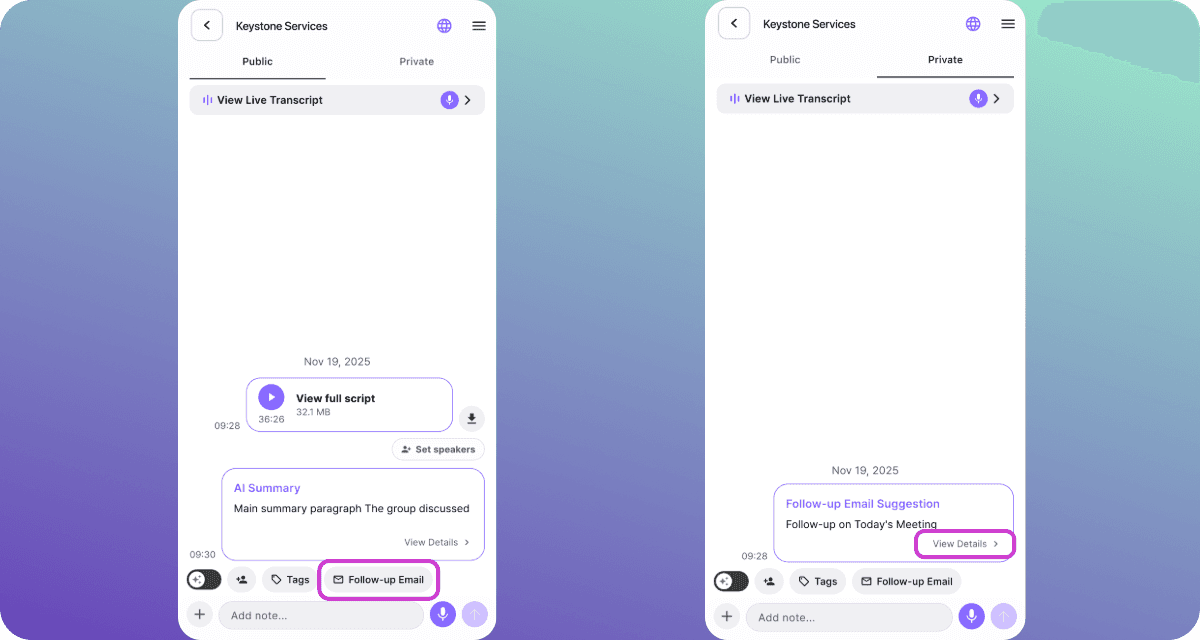
After the meeting, tap Follow-up Email.
In the Private tab, you’ll see a Follow-up Email Suggestion card.
Tap View Details to open the email editor.
💡 Tip: BizCrush uses your meeting summary to craft a relevant first draft automatically.
Step 2: Review the initial draft (Auto-generated)
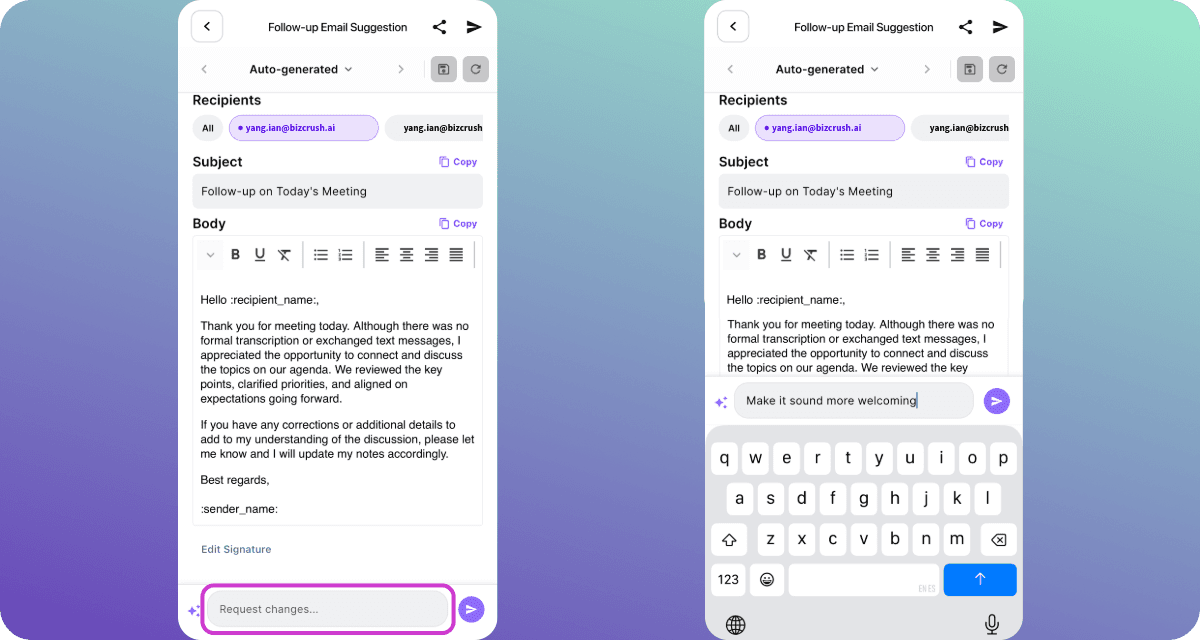
BizCrush generates a complete email, including:
-
Recipients
-
Subject line
-
Email Body (editable)
-
Quick Copy buttons for easy sharing
This draft is designed to be usable.
Step 3: Request changes with Ask AI
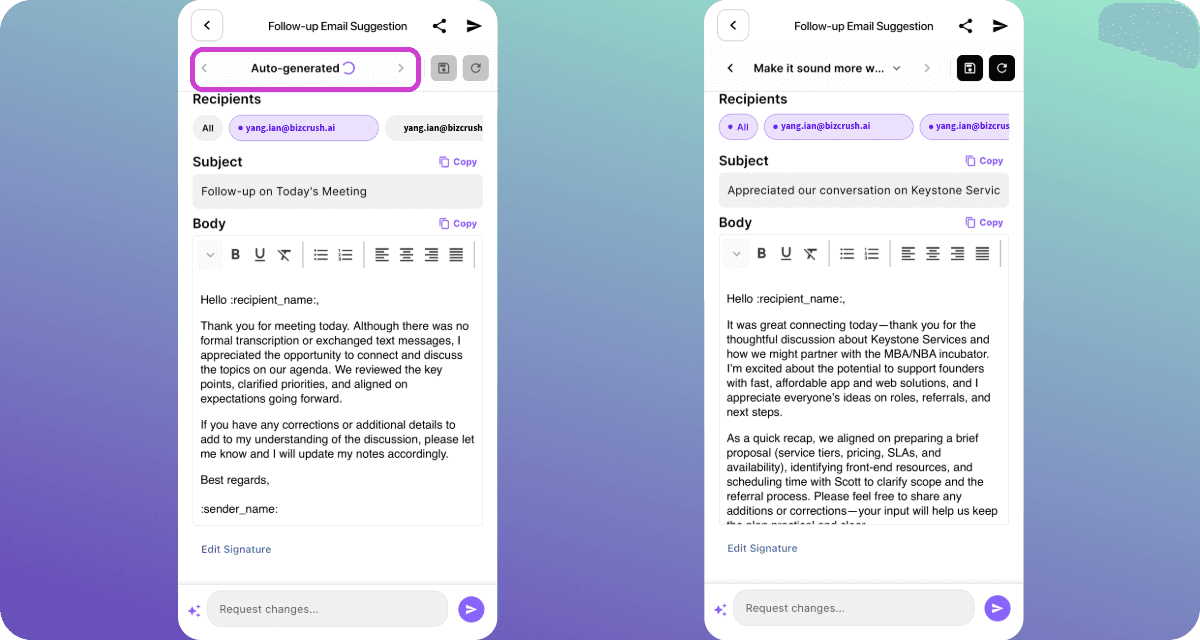
At the bottom of the editor, tap Request changes
Type a short instruction, for example:
-
“Make it more welcoming.”
-
“Add a brief recap + next steps”
-
“Make it shorter or more direct.”
-
“Rewrite the opening paragraph.”
-
“Add context about our partnership goals”
Tap the Send (➤) icon to regenerate instantly.
Step 4: See your revised version
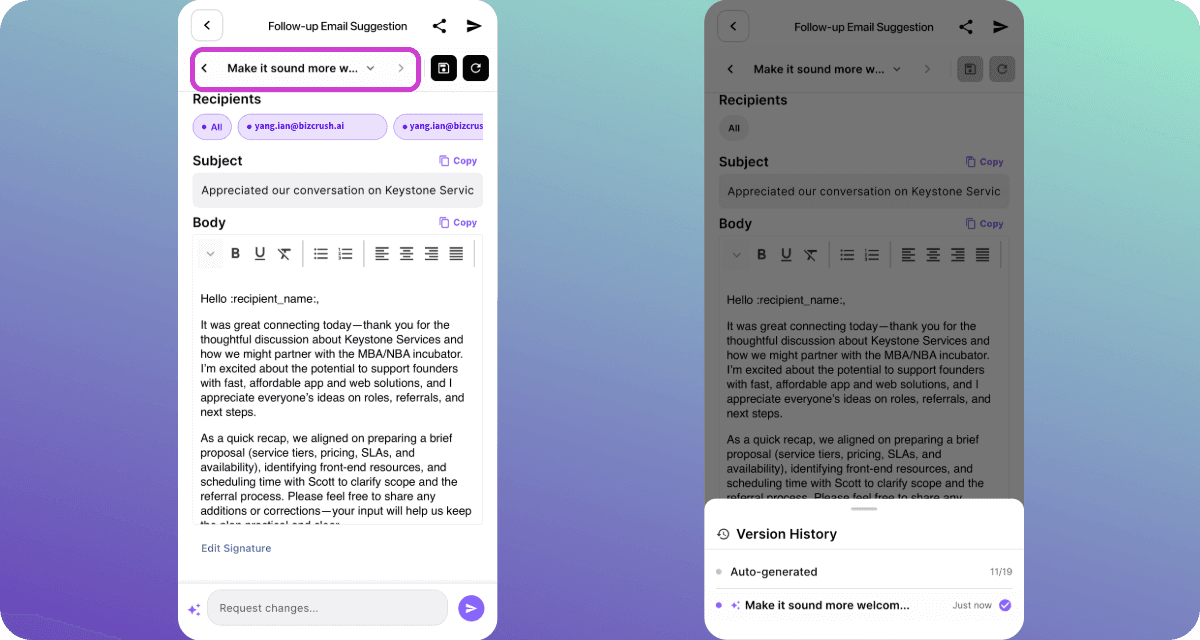
Ask AI applies your instruction and produces a new version, improving:
-
tone (friendlier / more confident / more formal)
-
clarity and structure
-
context and relevance.
Both the subject and body update automatically.
To compare versions, open Version History:
-
The original Auto-generated draft
-
Rach Ask AI revision (labeled by your request)
You can iterate freely without losing earlier drafts.
Step 5: Choose the best version and send it
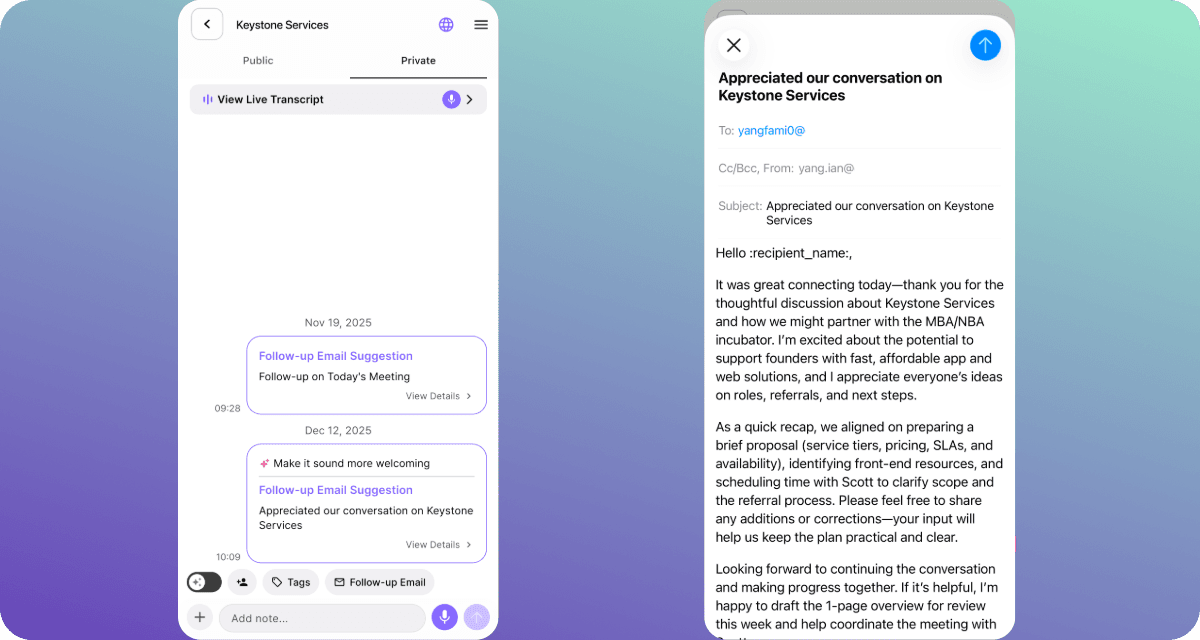
Back on the meeting page, you’ll see multiple Follow-up Email versions.
Open the one you like best, then copy or send it using your email app.
Pro Tips
-
Be specific: Add 2 bullet next steps” works better than “make it better.”
-
Include context when needed (the org, project name, or decision point)
-
Example Ask AI prompts:
-
“Confident but not salesy’
-
“Turn the recap into bullet points.”
-
“Mention the demo we discussed.”
-
“Add context about timeline and ownership.”
-
“Include a CTA for scheduling a follow-up.”
-
TD; LR
-
Open your meeting → Follow-up Email → View Details
-
Review the Auto-generated draft
-
Tap Request changes → type instruction → send (➤)
-
Compare drafts in Version History
-
Choose the best version and send it
Try it now.