
Guide
How to translate a Weverse live into your language
Open the Weverse live in Chrome or Edge on your computer. In another tab, open BizCrush Live, pick your language and Voice or Text mode, press Start, and share the Weverse tab with “Also share tab audio” turned on. You then hear the live as interpreter voice or read it as captions, in real time, in any of 60 languages. No Weverse membership is needed for the translation — you only need to be able to watch the live itself.
Three steps
01
Open the live on Weverse
Play the Weverse live in Chrome or Edge on your computer (weverse.io). Keep that tab open.
02
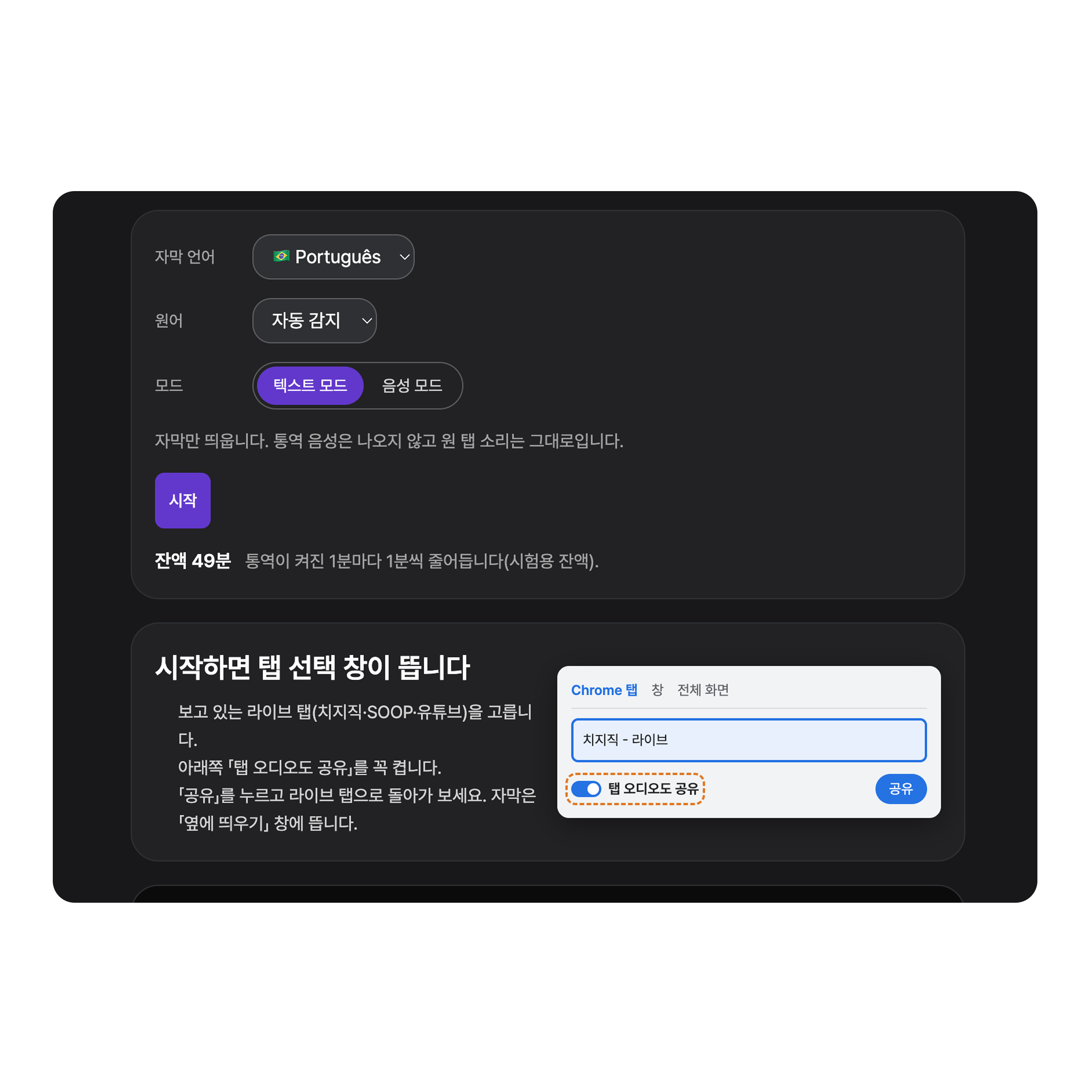
Pick your language and mode
Open BizCrush Live in a new tab. Choose your language, then Voice mode to hear the interpretation or Text mode to read captions only.
03
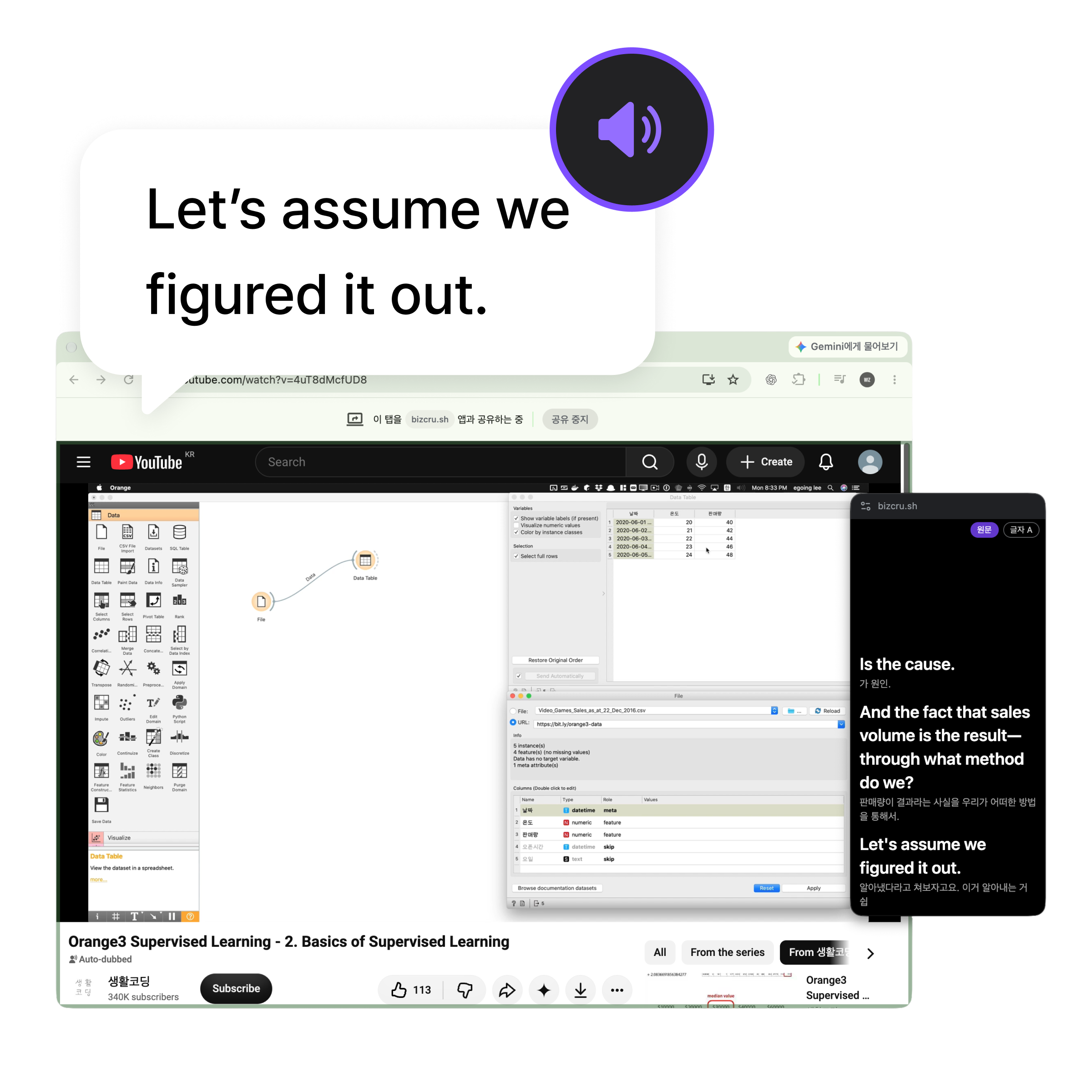
Share the Weverse tab
Press Start. In the window that opens, choose the Weverse tab, turn on “Also share tab audio”, and press Share. The caption window opens next to it.
Good to know
- Computer only. The Weverse phone app is not supported.
- Talking and singing are both translated. Names, nicknames and wordplay can still be missed or translated literally.
- If a paid Weverse video won’t play in Chrome, Weverse recommends Edge — open it in Edge and share that tab instead.
- Nothing is shown to the artist or the chat, and the audio is not saved.
Frequently asked questions
Do I need a Weverse membership to translate a live?
Does it work on my phone?
Are songs translated too?
Is it free?
Try it on the next Weverse live
Open the live, then start BizCrush Live in another tab.