
Tutorials
Quick Start Guide
 BizCrush
5 min read
To ensure seamless conversations even among speakers of different languages and accurate recording even in noisy environments, BizCrush listens, translates, and organizes in real time.
This guide will walk you through everything from starting your first meeting to checking the AI summary.
Note:* This guide is based on the mobile app.*
Before You Start
Mobile: Search for BizCrush on the App Store or Google Play and download the app.
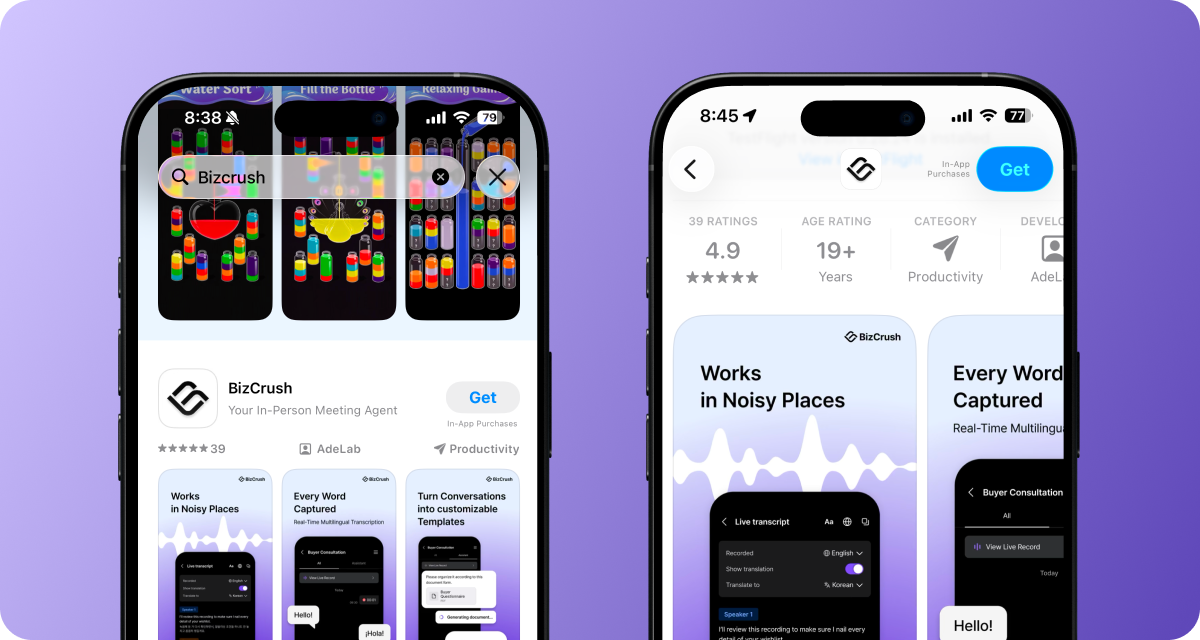
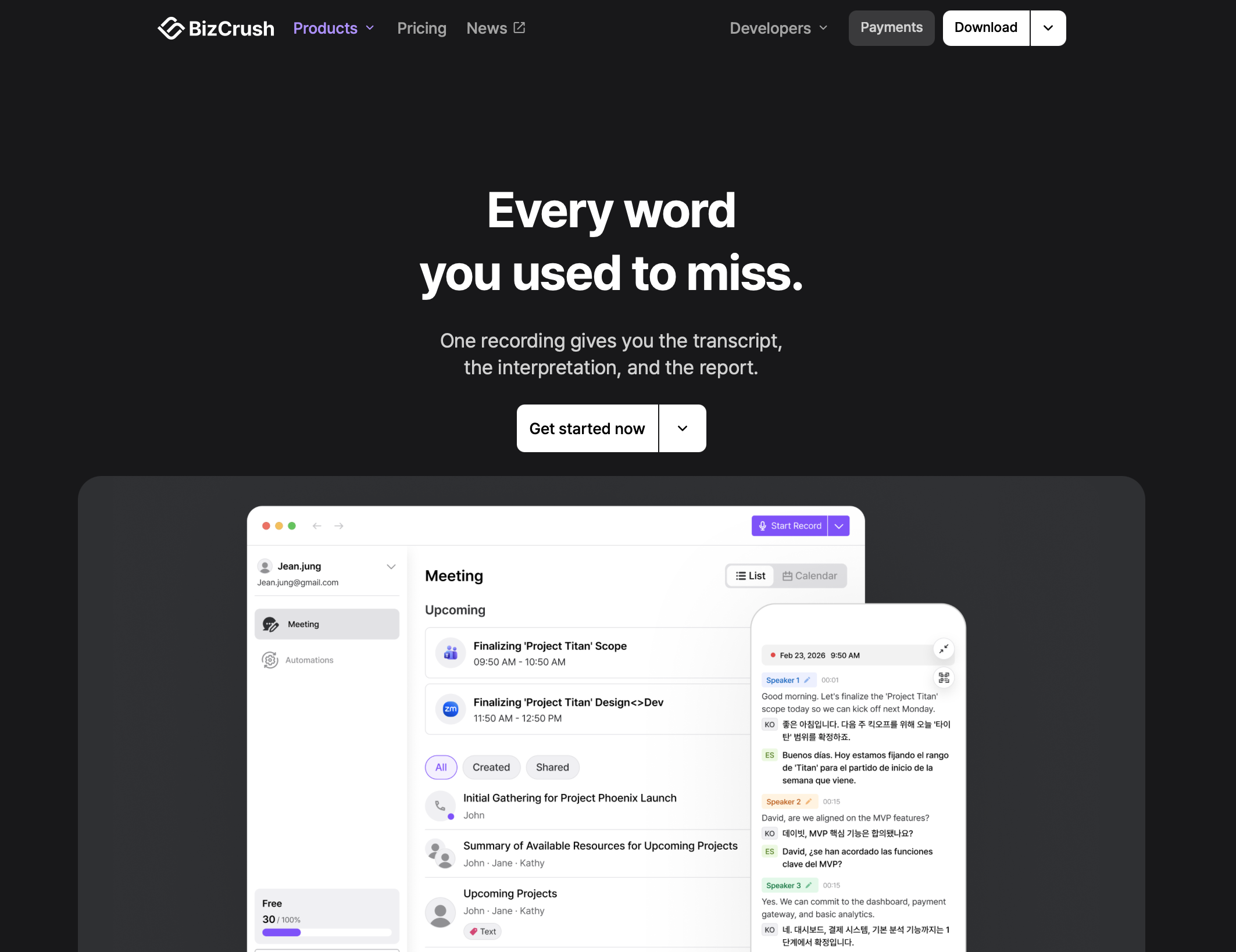
Desktop: Go to bizcrush.ai and click Download PC Version to download the desktop version.
Note*: BizCrush works exactly the same on Windows and macOS desktop environments.*
Before starting your first meeting, please check the following:
-
Are you logged into the BizCrush app?
-
Is microphone access permitted?
Note:* If you previously denied microphone access, please allow it in your device's Settings > Apps > BizCrush > Permissions.*
1. Starting a New Meeting
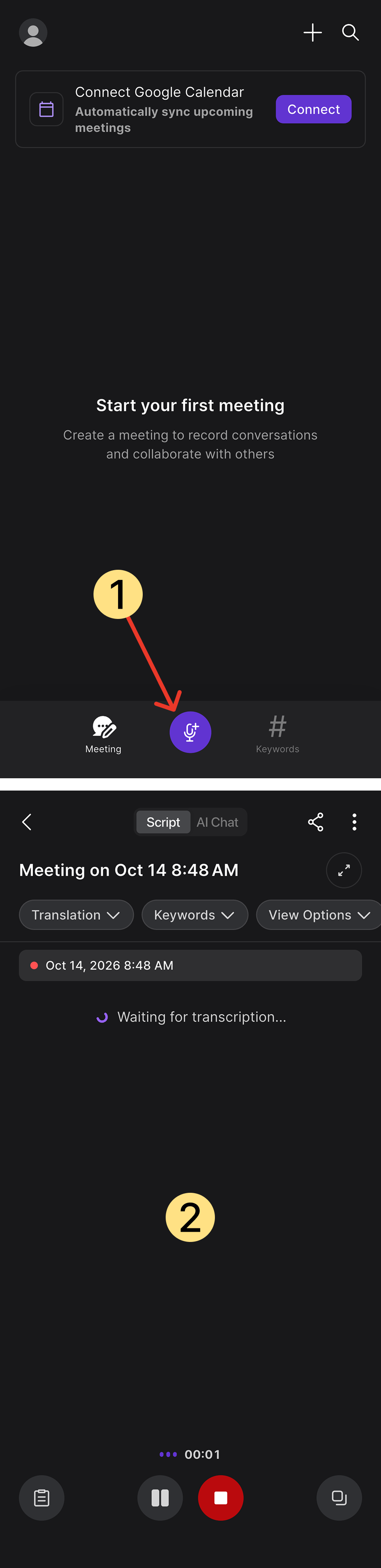
Tap the purple microphone button at the bottom center of the home screen to start a new meeting.
Once the meeting room opens, the Script screen will appear, with pause and stop buttons at the bottom. Right after the meeting starts, a subtitle preparation or STT server connection status may be displayed for a few seconds.
2. Checking the Meeting and Translation Languages
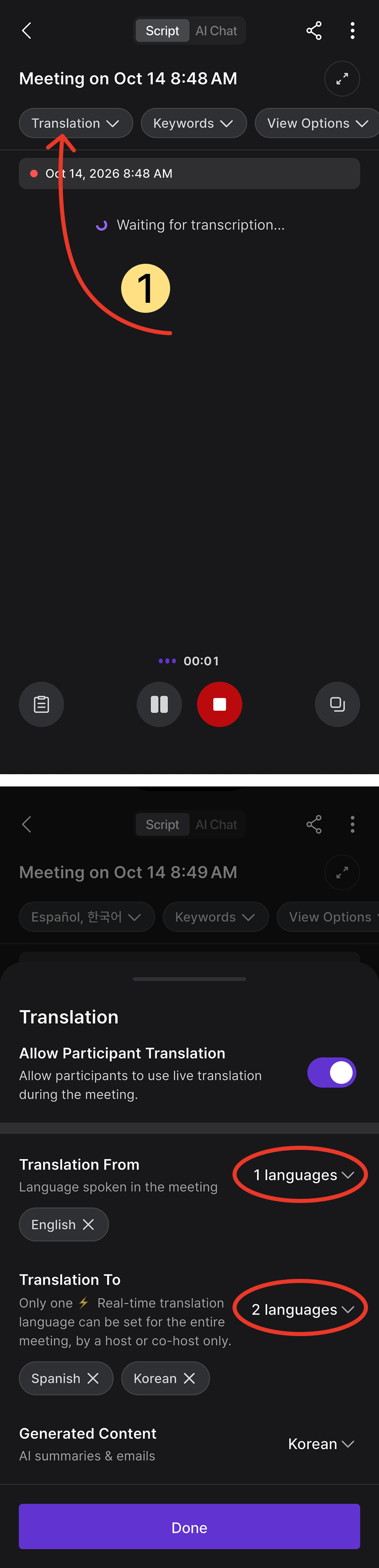
Tap the language selection button at the top of the meeting room to check translation settings.
On this screen, you can set the language actually spoken in the meeting and the translation language to be displayed on the screen.
-
Source Language: The language actually spoken in the meeting.
-
Target Language: The language to be displayed on the screen.
-
Generated Content: The language to be used for the AI summary.
If you allow participant translation, participants can view the content in their preferred language on their own devices when the meeting is shared. After confirming the settings, tap the Done button to return to the meeting screen.
3. Checking Real-time Transcription and Translation
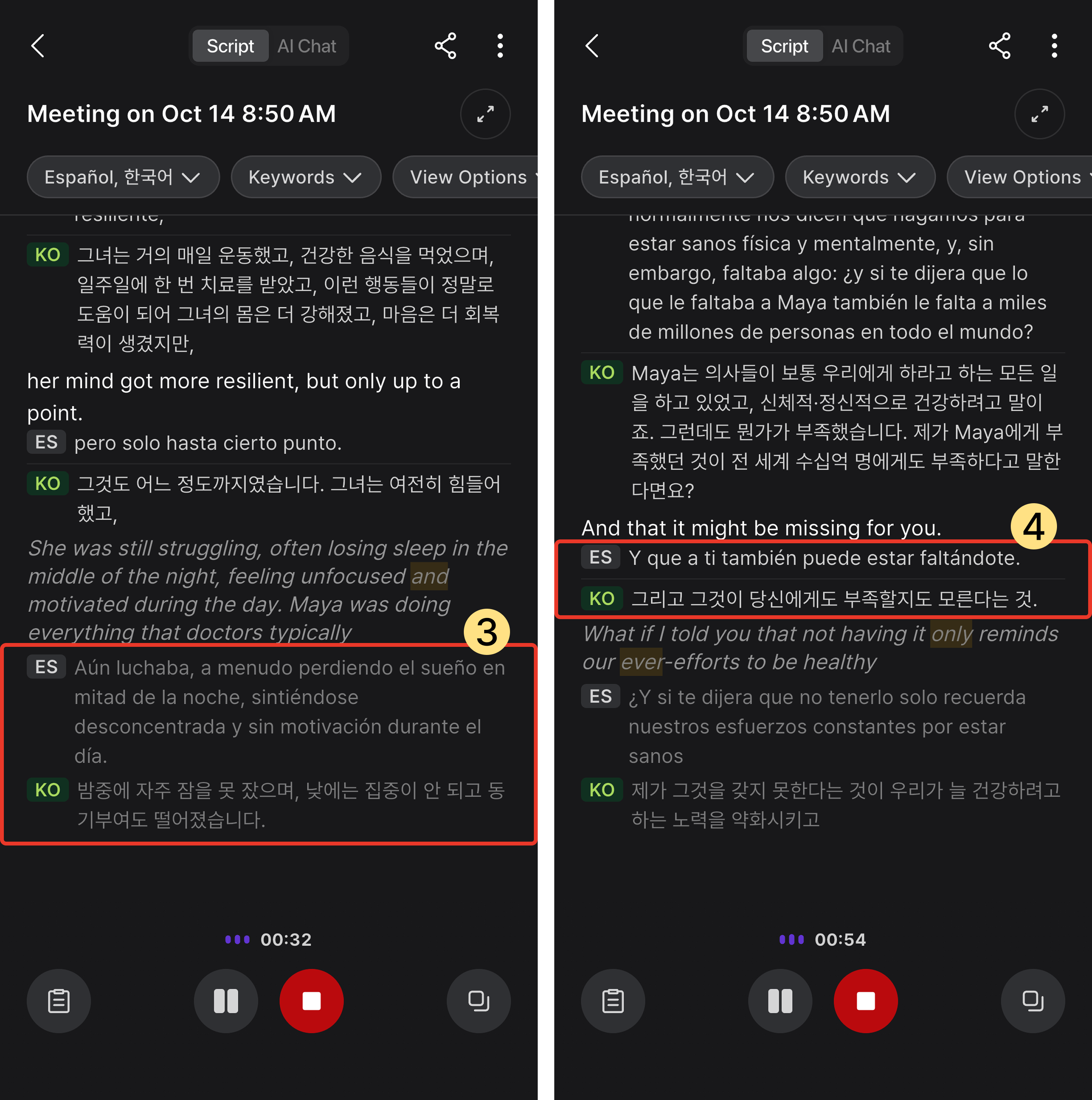
During the meeting, spoken content is displayed in real time on the Script screen.
The original text and translation are displayed with language labels, making it easy to check the original and translated speech even in multilingual meetings.
If you need to correct any part of the content, tap the edit icon next to each sentence.
4. Checking Real-time Summaries and Source Text
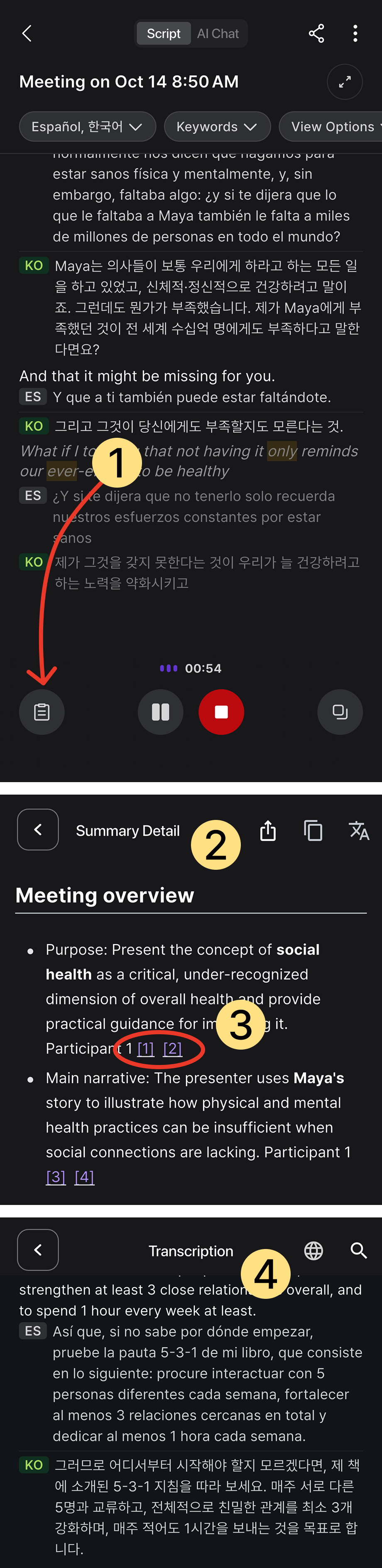
You can check the summary screen by tapping the real-time summary icon at the bottom during or after the meeting.
On the real-time summary screen, key meeting points are organized by item. The numbers next to the summary link to the original text segment where that content appeared.
For example, tapping numbers like [1] or [2] lets you see the specific conversation the summary was based on.
5. After the Meeting Ends
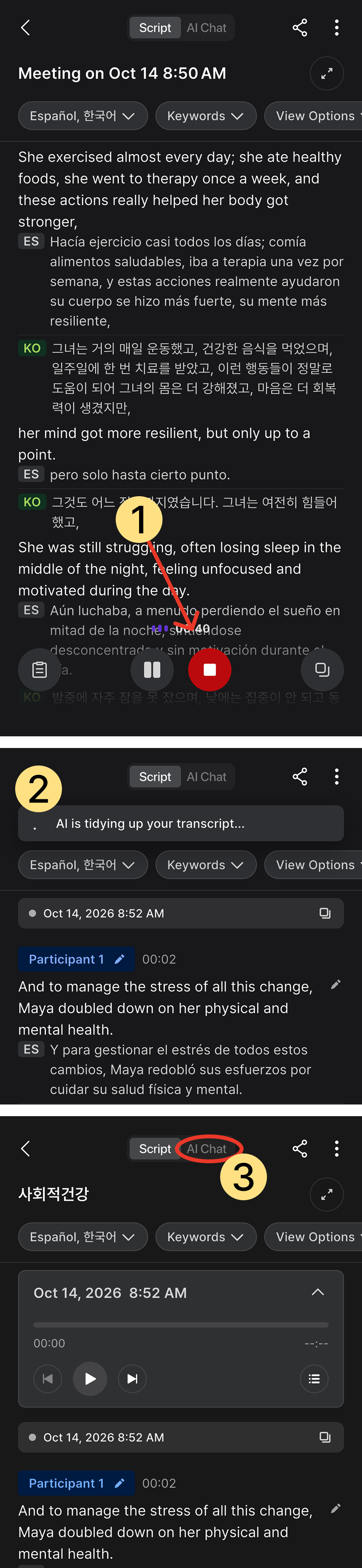
When the meeting is over, tap the red stop button at the bottom center to end the recording.
Once the recording ends, BizCrush automatically organizes the content and generates a summary.
Depending on the meeting length and network environment, organizing may take a moment. Once organized, you can check the meeting summary in the **AI Chat **tab.
6.Viewing Summary Details in AI Chat
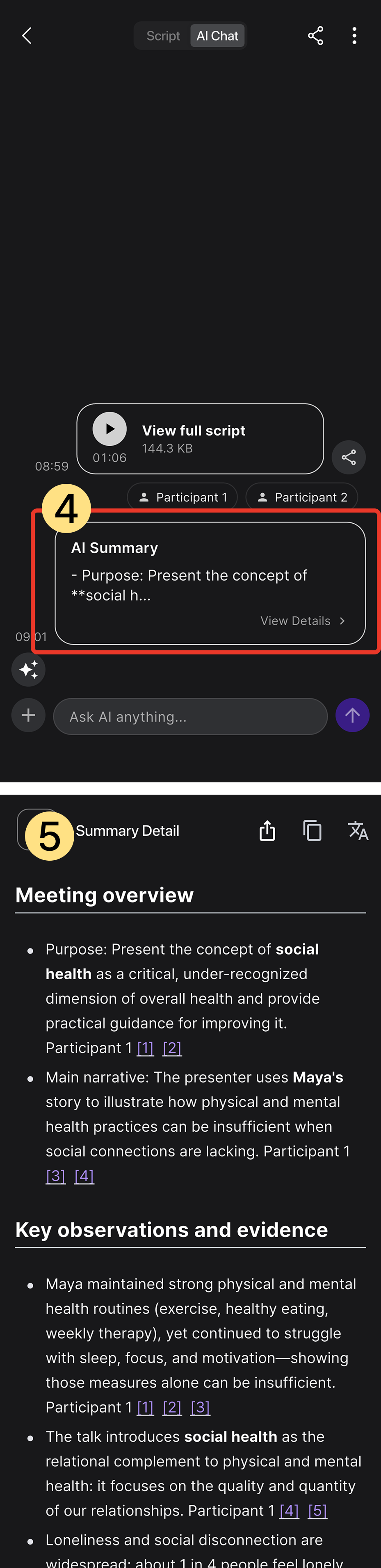
Go to the AI Chat tab to see the full transcript and the AI summary card.
On the summary detail screen, you can copy or share necessary content, and view it in other languages using the translation feature.
Increasing Font Size
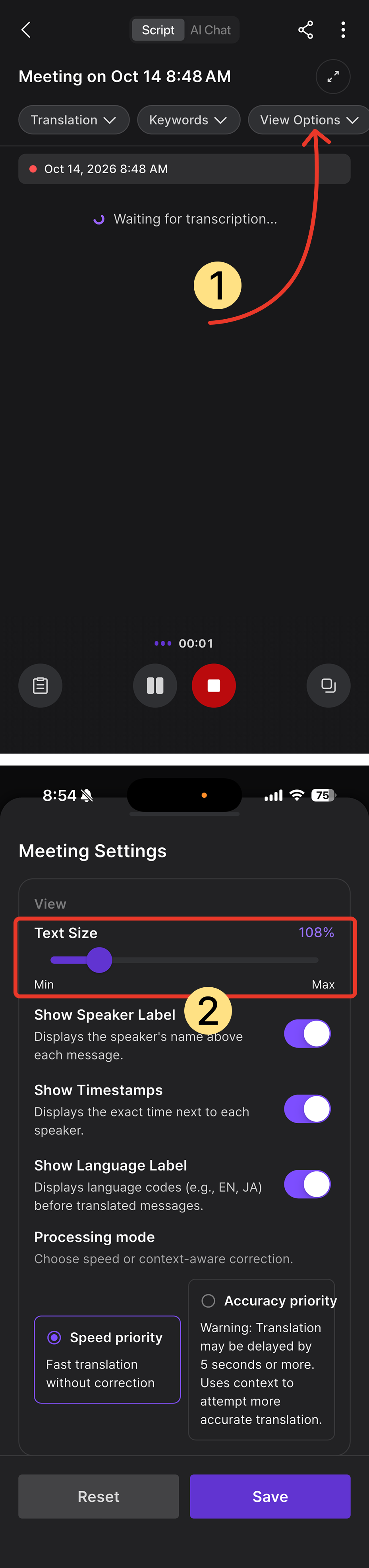
If the transcription or translation text seems too small during the meeting, you can adjust the font size.
Tap the View Options button at the top of the meeting room.
You can change settings here to make the content easier to read, such as font size and display mode.
Sharing a Meeting
Meeting sharing is a feature that invites others into the same meeting so they can view the real-time transcription and translation together.
People can quickly join the meeting via a QR code or email link without installing the app.
You can use this in situations such as:
-
When a participant next to you wants to see the translation on their phone.
-
When you want to open the same meeting room for someone participating with you.
-
When you want to send a meeting link to someone far away.
-
When you want participants at an event or seminar to view the content in their own language.
There are two main ways to share a meeting:
-
Sharing via QR Code
-
Sharing via Email
Method 1. Sharing via QR Code
A QR code is the most convenient way to quickly invite people in the same physical space.
-
Tap the share icon in the top right corner of the meeting room.
-
When the QR code appears on the screen, show it to the participant with you.
-
When they scan the QR code, a page opens allowing them to join the meeting and view the real-time transcription and translation.
Method 2. Sharing via Email
Email sharing is used when the other person has installed BizCrush and wants to view the entire meeting record together, or when you want to give them co-host management permissions.
Enter their email address, and the meeting room will be shared with the BizCrush account registered to that email.
-
Tap the share icon in the top right corner of the meeting room.
-
Select the Share and Invite button in the share settings.
-
Enter the recipient's email address and send the invitation.
-
The recipient can open the BizCrush app on their phone to check the meeting content.

Should I use a QR code or email?
-
QR codes are great for inviting someone right next to you without requiring app installation. For example, in a meeting room, conference hall, exhibition booth, or seminar, you can simply say, "Please scan this screen."
-
Email is great for sharing with someone who has the app installed. For example, you can use it to share content with team members after a meeting or co-manage a meeting room during a live meeting.
Activating Privacy Mode
Privacy Mode is used when having sensitive conversations and you want to minimize record retention.
In regular meetings, you can use features like transcription, summaries, and AI Chat to review things after the meeting. However, some meetings involve sensitive content you may not want to keep for long.
You can use Privacy Mode in situations like:
-
Meetings involving internal confidential matters
-
Meetings handling personal or sensitive customer information
-
Consultations or discussions where records must be minimized
-
When you do not want to keep the conversation content after the meeting
Privacy Mode helps reduce the storage scope in these situations, allowing you to conduct meetings more carefully.
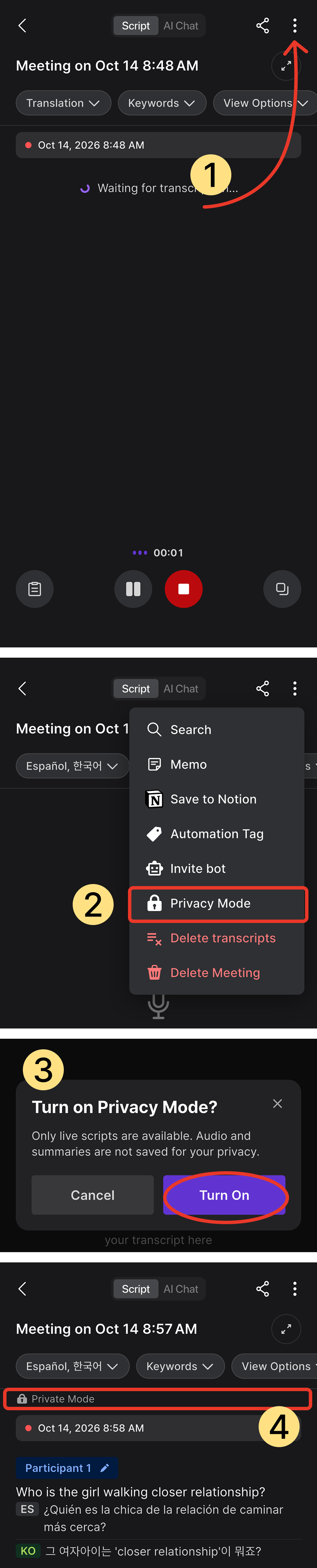
Note:* This feature can be set before or during a meeting.*
-
Open the More menu or Settings menu in the top right corner of the meeting room.
-
Select Privacy Mode from the menu.
-
Select Turn On Privacy Mode.
Things to remember when using Privacy Mode
Privacy Mode is designed to handle conversations more carefully.
However, turning on Privacy Mode may change how some saving, summarizing, and review features from regular meetings operate.
-
Regular meetings are for reviewing and organizing later.
-
Privacy Mode meetings are to avoid keeping sensitive content for long.
If you absolutely need a record or summary to review after the meeting, use Regular mode, and if minimizing records is more important, use Privacy Mode.
Enterprise Security Features:* For enterprise customers requiring stricter data security, we offer separate enterprise configurations, including private cloud deployment, on-premise deployment, and internal system-only storage.*
Troubleshooting
If the transcription does not appear immediately during a meeting, please wait a few seconds. If the transcription still does not appear, please check the following:
-
Is microphone access permitted?
-
Is the network connection stable?
-
Is the app updated to the latest version?
You're All Set!
Now, start your first meeting. To ensure people speaking different languages can converse flawlessly in the same room, BizCrush handles the tedious meeting minute organization and follow-ups.
If you need help or have partnership inquiries, please contact us anytime at business@bizcrush.ai.
FAQ
How do I fix blocked microphone access?
- If you denied permission when first running the app, go to your device's [Settings > Apps > BizCrush > Permissions] menu and allow microphone access.
Are meeting summaries automatically sent by email?
-
Yes, once the meeting ends and the summary is automatically generated, it is sent to the emails of all invited participants in that meeting room.
-
(Sender: noreply@mail.bizcrush.ai) If you don't receive the email, please check your spam folder.
-
Note:* You must press the Stop button to end the meeting before closing the app for the summary to be generated and sent properly.*
What is Privacy Mode?
-
Using Privacy Mode allows you to use real-time speech-to-text and translation features without retaining any voice recording data.
-
No audio data is stored on the user's device or server.
-
After the meeting ends, if the host deletes the meeting, no data remains anywhere, including our servers.
Is it safe to use for secure meetings requiring confidentiality?
- Yes, it is safe. If you conduct a meeting with [Privacy Mode] turned on, no audio files are saved, and only the real-time speech-to-text feature operates.
Does BizCrush comply with recording regulations?
-
Regulations regarding recording consent vary by country and region (e.g., regulations differ by state in the US).
-
Before starting a meeting, we recommend notifying all participants that the meeting will be recorded and obtaining their consent.
Does recognition work well in noisy environments or cafes?
-
BizCrush has developed and applied noise-canceling technology that automatically separates background noise from voice audio.
-
In noisy environments, placing the device (microphone) closer to the speaker will yield significantly better recognition results.
What languages are supported?
-
BizCrush supports up to 60 languages.
-
Real-time translation can simultaneously recognize up to 3 languages and translate into 2 languages in real time.
What services does it integrate with?
-
BizCrush currently integrates with Notion.
-
You can automatically export meeting notes and share them with team members.
-
For enterprise environments, we also support an option to save meeting records to your internal company wiki.
-
If you need additional integrations, please contact us anytime via email.
Can I use it on both mobile and desktop?
-
Yes. BizCrush supports iOS, Android, Windows, and macOS.
-
You can view and edit data across multiple devices using the same account.
Where are recording files stored?
-
Original voice files are stored only on the user's device (locally).
-
Encrypted file copies may be temporarily stored on the server for synchronization across devices, but they are automatically and permanently deleted after 48 hours.
Can I upload existing recordings?
- Yes. You can upload audio files you already have to generate transcriptions and summaries.
What types of audio files can I upload?
- We support most widely used general audio file formats, including MP3, M4A, WAV, and OGA.
What is the difference between real-time transcription and post-meeting transcription?
-
Real-time transcription instantly converts speech to text the moment it is spoken.
-
Post-meeting transcription is the result of the AI refining the text after recording ends to improve readability and accuracy.
Where is the meeting summary?
-
When the recording ends, BizCrush automatically organizes the meeting content into a structured summary. This summary is emailed to all invited participants and can also be found in each meeting room.
-
If you want a specific summary format, you can customize it in the desktop version. Using the feature, drag in your preferred template or previous meeting minutes for the meeting record, and request a customized summary.
-
This may take a few minutes depending on the length of the recording.
How does email follow-up work?
-
BizCrush analyzes the conversation and drafts a customized follow-up email based on the meeting content.
-
You can manually edit it or ask the AI to adjust the tone before sending.
-
If you skip this step, the summary will not be generated.
Can I use BizCrush for free?
-
Yes. BizCrush can be used for free for up to 3 hours.
-
However, if you use certain advanced AI features like real-time voice translation, your provided usage time (tokens) may be consumed faster.
Recommended Reading
Desktop Real-time Subtitle Guide